

desktop-cc-gui

desktop-cc-gui

MCP.Pizza Chef: zhukunpenglinyutong

This application puts a graphical workspace around command-line coding assistants — Claude Code, Codex CLI, Gemini CLI, and OpenCode — so you can write code, fix bugs, and commit changes to Git without touching a terminal. It includes a file browser, a built-in terminal, a Git panel with AI-written commit messages, task boards, and a project map that shows how your files connect. It runs on macOS, Windows, and Linux, and needs an API key or local login for whichever AI engine you choose.

Coding

Use This MCP client To

Chat with an AI to write and fix code in my project Browse and edit my project files in one window Commit changes to Git with AI-written commit messages Keep a running to-do board for my coding tasks See a map of how my project's files connect Resume a coding conversation right where I left off Dictate my requests instead of typing them

README

Desktop CC GUI

ccgui icon

English · 简体中文

zhukunpenglinyutong%2Fdesktop-cc-gui | Trendshift

ccgui is an open-source desktop client for AI coding. In plain words: it brings command-line AI coding runtimes such as Claude Code, Codex CLI, Gemini CLI, and OpenCode into one graphical interface.

No more staring at a black terminal. Open ccgui, pick a project, and chat with AI to write code, fix bugs, and commit to Git. File and tool activity is visible as it happens; token usage and estimated cost appear when the selected runtime supplies the required metadata.

The app is built with Tauri 2 + React 19 + TypeScript + Rust and runs on macOS, Windows, and Linux. App settings, workspace indexes, and client state are persisted locally by default. Content sent to an AI provider, Browser Agent, email service, or an optional remote/web service follows the boundary of that configured service.
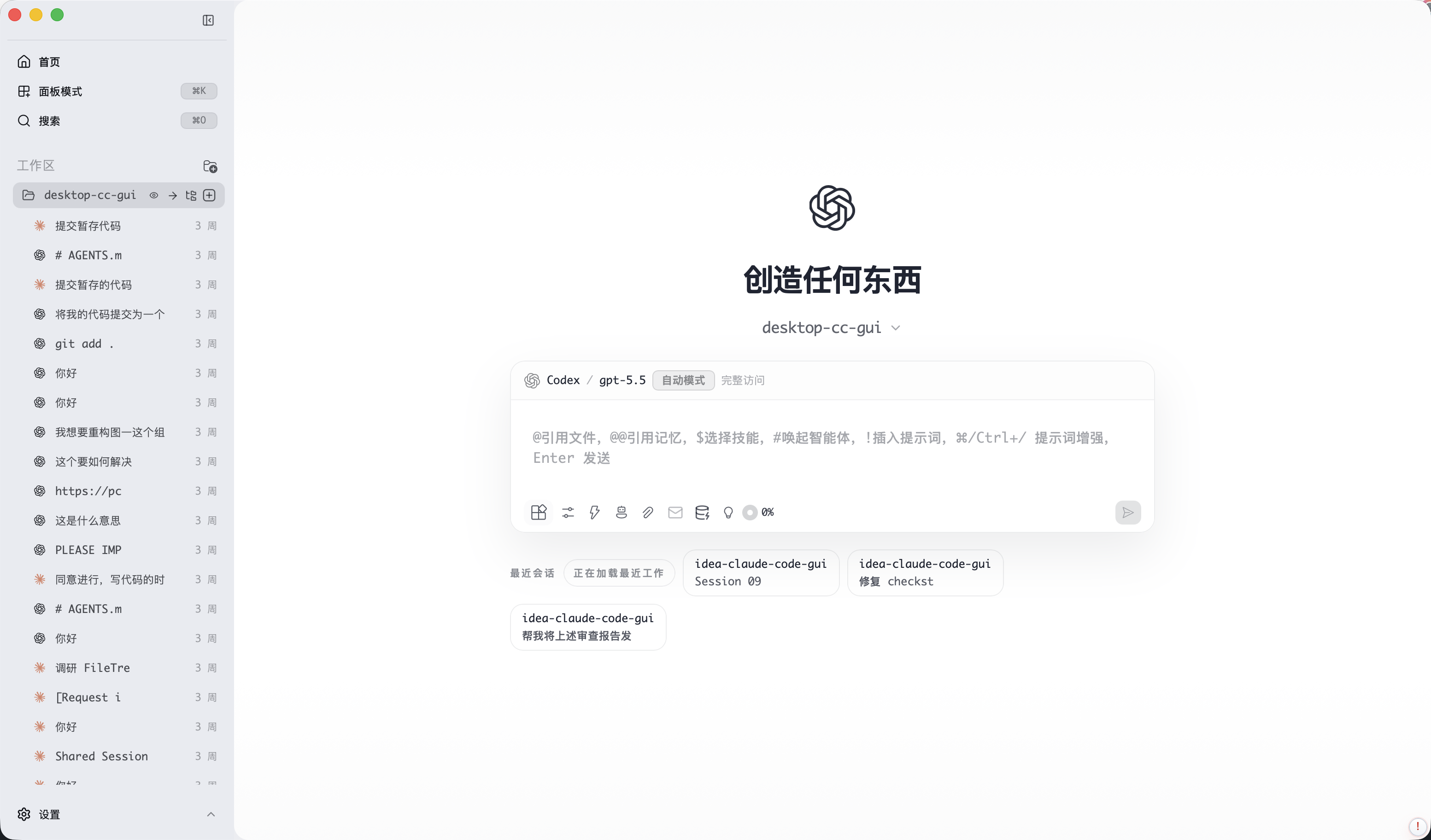
ccgui screenshot


desktop-cc-gui FAQ

Do I need an account or an API key to use this?
Yes — you'll need a key or login for whichever AI engine you choose, such as Claude Code, OpenAI's Codex, or Google's Gemini.
Which AI assistants can I use inside this app?
It works with Claude Code, Codex CLI, Gemini CLI, and OpenCode, so you can switch between different AI coding assistants without leaving the app.
Is this easy to set up, or do I need to be a developer?
Setting it up currently takes some technical steps, such as installing Node.js and Rust and building the app yourself, or downloading a ready-made installer and connecting it to an AI engine.
Can I use this to fix bugs in my code?
Yes — you can describe the problem to the connected AI assistant, watch it read and edit your files, and review every change before committing it.
Can I use this to keep track of my coding tasks?
Yes — a Plan panel shows the AI's step-by-step plan, and a Kanban board lets you drag task cards around as you work through your project.
Does it work on my computer?
Yes — there are versions for macOS, Windows, and Linux, with installers available for each.
Will my conversation history be saved if I close the app?
Yes — your sessions are saved locally, so you can close the app and pick your conversation back up later.
Can I talk to it instead of typing?
Yes — a built-in voice dictation feature lets you speak your requests instead of typing them out.