holaOS

MCP.Pizza Chef: holaboss-ai

This desktop workspace app lets you run different AI agents — Claude Code, Codex, or its own built-in assistant — in one place, so your notes, files, and project history carry over when you switch tools. It connects to over a hundred everyday apps such as Gmail, Notion, Slack, and GitHub, plus any Model Context Protocol tool, opening them as real windows beside your agent so you can watch the work and jump in. It includes ready-to-use AI models, so no account keys are required to start, though you can add your own OpenAI or Anthropic keys later.

Coding
Communication
Data

Use This MCP client To

Run Claude, Codex, or a built-in agent side by side Keep one shared memory so my assistant remembers past projects Connect Gmail, Notion, Slack, and GitHub in one click Watch my AI work inside an app and step in anytime Save finished work as real Word, Excel, or PowerPoint files Message my AI assistant from Slack or Telegram Schedule a report or digest to run automatically

README

holaOS

The Computer for You and Your Agent

Run any agent — Claude Code, Codex, or holaOS — in one local-first workspace, over your tools, your files, and one shared memory. Frontier models built in, or bring your own keys.


CI macOS (Apple Silicon and Intel), Windows, and Linux supported Electron desktop TypeScript runtime Modified Apache 2.0 license

Follow on X Join our Discord

Website · Docs · Sign in · Quick Start

⭐ If holaOS is useful, a star helps more builders find it.
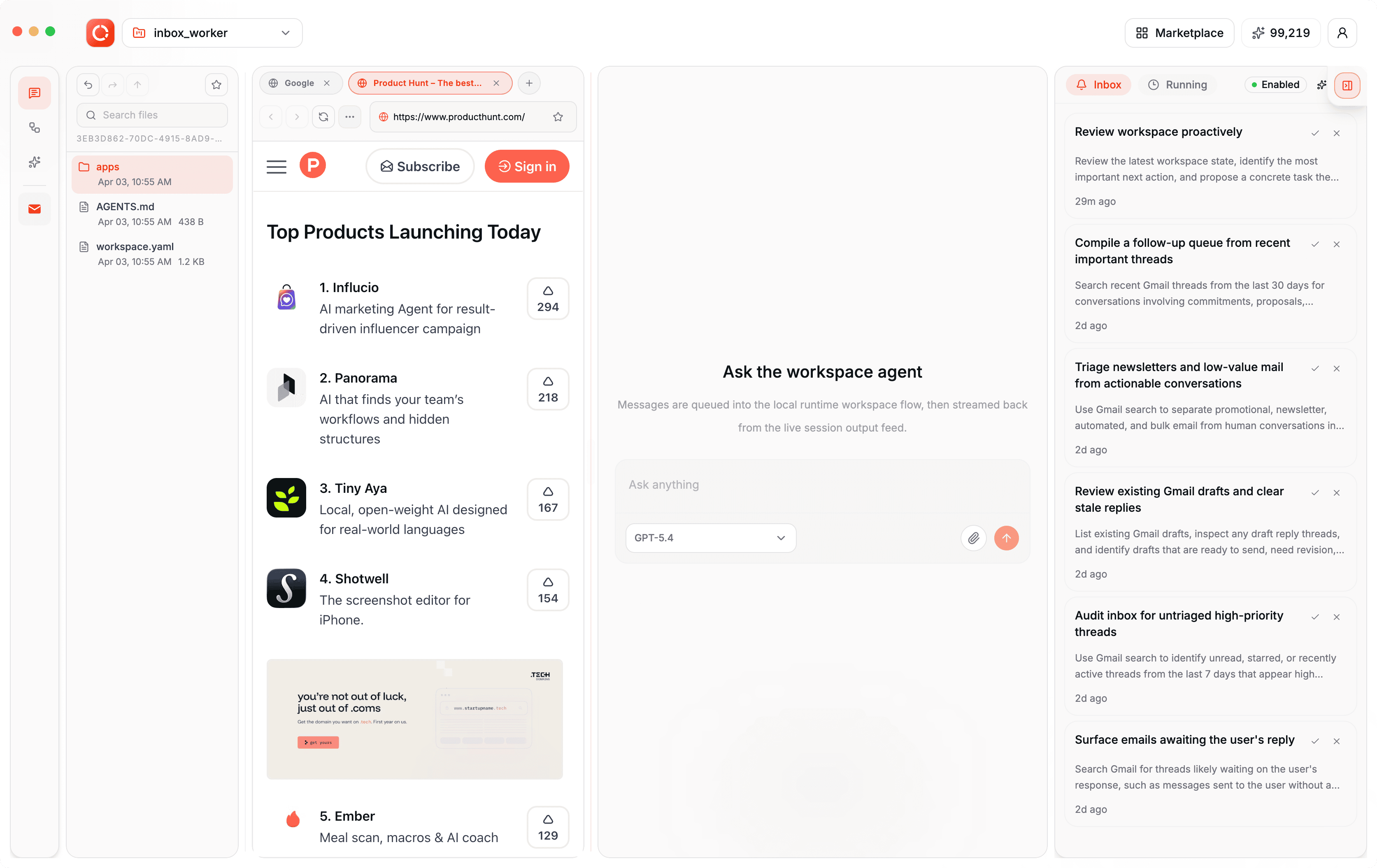
holaOS desktop workspace


✨ What makes it different

🔀 Run any agent, one workspace

Claude Code, Codex, and the built-in holaOS agent — side by side, no switching. Whichever you run, it shares the same memory, tools, skills, and apps. Use the best agent for the job without rebuilding your setup every time.

  • No lock-in — bring the agent you already trust.
  • Shared everything — one context, one set of tools, one workspace.
  • Consistent results — the same skills and integrations, whatever's driving.

🧠 One memory, every agent

Context, preferences, and project history live in a single shared memory — stored locally, as plain files you can read and edit. Switch agents, close the app, come back next week: it already knows where you left off.

  • Never start from zero — durable memory across sessions and agents.
  • Local-first & yours — on your machine, visible and editable, not locked in someone else's cloud.
  • Actually recallable — structured and embedded, so the right context returns when it's needed.

holaOS memory tree

💸 Models your way — built in, or bring your own

One account, every model — no keys, no setup, no switching between providers. The latest frontier models are built in: cost-efficient Kimi K3 and GLM 5.2 for everyday volume, plus top-tier GPT 5.6, Claude Opus 5, and Fable 5 for the hard problems. Prefer your own provider? Bring your own keys for OpenAI, Anthropic, or any OpenAI- or Anthropic-compatible endpoint — those run on your account, not your holaOS plan.

  • Zero-setup default — one account, every SOTA model, no API keys to manage.
  • BYOK when you want it — your keys, your providers, your rates.
  • Right model per task — pick per job, per agent.

🪟 HolaApps — apps and agent, side by side

Install apps from the in-workspace marketplace and they open as real, interactive surfaces right beside your agent. Watch it work inside the app, step in whenever you want, and the result lands in place — not a wall of chat text, but the actual app, driven by the agent, next to the agent.

  • Real surfaces, not chat — every app is a live UI (Notion, a browser, your own app), not a transcript.
  • Side-by-side by design — app and agent share the screen, so you always see what's happening and can take over.
  • One click to install — browse the in-workspace marketplace and open any app instantly.
  • Bring your own — point a HolaApp at any URL and MCP server; it lives on your machine, yours to open and drive.

The Notion HolaApp open side-by-side with the agent navigating it in holaOS

🧩 Skills, Integrations & MCP — teach it once, reuse everywhere

  • Integrations — connect Gmail, Notion, Slack, GitHub, Linear and 50+ more with one-click OAuth. Agents read and act across your tools, no glue code — and every agent inherits the same connections.
  • MCP — plug in any Model Context Protocol server to give your agents new tools. Bring your own, or install community MCP servers in one click.
  • Skills — package a workflow once; any agent runs it on demand.
  • Combos — bundle skills and integrations into a single one-click install.

The holaOS in-workspace app marketplace

🛠️ Your entire workstation, agent-operable

  • 🌐 A real browser, driven by agents — signed-in browsers your agents drive to browse, click, and extract — under your control.
  • 🎨 Frontier generation built in — the latest image, video, and audio models inside every agent. Storyboard a video, design a poster, voice a script — one prompt.
  • 📄 Real deliverables — reports, spreadsheets, and slides saved as real .xlsx, .pptx, and .docx files you can send, not text stuck in a chat.
  • 💬 Reach it from anywhere you chat — Feishu, WeChat, Slack, Telegram. Send a task from any thread; the result comes back to the same thread.
  • ⏰ Automation — run on a schedule or a trigger. Digests, monitors, and reports finish and file themselves.

🚀 Run it your way

🖥️ Desktop app Download and go. Nothing to set up — frontier models built in, free to start.
🔓 Open source Self-host it. Modified Apache 2.0, bring your own keys, run it entirely on your machine.
🏢 Enterprise SSO with per-role permissions for every agent, skill, and app. Connect internal systems without exposing them. Audit logs on every action. On-prem or your own cloud.

Table of Contents

Quick Start

One-Line Install

For a fresh-machine bootstrap on macOS, Linux, or WSL, use the repository installer:

curl -fsSL https://raw.githubusercontent.com/holaboss-ai/holaOS/refs/heads/main/scripts/install.sh | bash -s -- --launch

You can also follow the manual path if you want to control each setup step.

Star the Repository

Animated preview from the holaOS star-the-repo video

If holaOS is useful or interesting, a GitHub Star would be greatly appreciated.

Manual Install

You likely will not need this section because One-Line Install runs the same setup. Use Manual Install when you want to inspect or control each step. If you use the manual path, verify the usual prerequisites first:

git --version
node --version
npm --version

One-Line Agent Setup

If you use Codex, Claude Code, Cursor, Windsurf, or another coding agent, you can hand it the setup instructions in one sentence:

Run the holaOS install script from https://raw.githubusercontent.com/holaboss-ai/holaOS/refs/heads/main/scripts/install.sh. It should install git and Node.js 24.14.1/npm if they are missing, clone or update the repo into ~/holaboss-ai unless I specify another --dir, run desktop:install, create apps/desktop/.env from apps/desktop/.env.example if needed, run desktop:prepare-runtime:local and desktop:typecheck, and only run desktop:dev if I ask for --launch. If Electron cannot open, stop after verification and tell me the next manual step.

That handoff keeps the installation flow self-contained while leaving the detailed bootstrap steps in the repo-local INSTALL.md runbook.

This is the baseline installation flow for local desktop development.

  1. Install the desktop dependencies from the repository root:
npm run desktop:install
  1. Create your local environment file:
cp apps/desktop/.env.example apps/desktop/.env

If you are following the repo exactly, keep the file close to the template and only change the values that your provider or machine needs. The canonical path is apps/desktop/.env. Existing legacy desktop/.env files are still accepted for now, but new setups should use apps/desktop/.env.

  1. Prepare the local runtime bundle:
npm run desktop:prepare-runtime:local
  1. If you want a quick validation pass before launching Electron, run:
npm run desktop:typecheck
  1. Start the desktop app in development mode:
npm run desktop:dev

The predev hook will validate the environment, rebuild native modules, and make sure a staged runtime bundle exists.

If you want to stage the runtime before opening the desktop app, there are two common paths:

Build from local runtime:

npm run desktop:prepare-runtime:local

Fetch the latest published runtime:

npm run desktop:prepare-runtime

Use the local path when you are actively changing runtime code. Use the published bundle when you want to verify the desktop against a known release artifact.

Use One-Line Install when you want the fastest path to a working local desktop environment. Use Manual Install when you need to inspect or control each setup step yourself.

OSS Release Notes

  • License: modified Apache 2.0 with additional commercial-distribution and branding conditions. See LICENSE.
  • Security issues: report privately to admin@holaboss.ai. See SECURITY.md.

holaOS FAQ

Is this hard to set up?
No — you can download the holaOS desktop app and start using it right away, since it comes with AI models built in and does not require any separate installation steps to begin working.
Do I need an account or an API key to get started?
No — holaOS comes with several ready-to-use AI models already included, such as Claude and GPT, so you can begin without setting up any accounts. If you would rather use your own OpenAI or Anthropic account, you can add your own key later.
Which AI assistants can I run inside holaOS?
You can run Claude Code, OpenAI's Codex, or holaOS's own built-in assistant — which includes several models such as GPT, Claude, Kimi, and GLM — all in the same workspace, and switch between them without losing your notes or project history.
Which apps and tools can I connect?
holaOS has a one-click marketplace with over one hundred connections, including Gmail, Notion, Slack, GitHub, and Linear, plus support for any Model Context Protocol tool you want to add.
Can I use this to keep working on the same project after I close the app?
Yes — holaOS keeps a shared memory of your notes, preferences, and project history saved as local files, so your assistant remembers exactly where you left off next time.
Can I use this to turn a finished report into a real spreadsheet or slide deck?
Yes — holaOS saves reports, spreadsheets, and slides as actual Word, Excel, and PowerPoint files that you can open and send, rather than leaving the result as text in a chat.
Can I send it a task from my phone?
Yes — you can message your assistant from Slack, Telegram, WeChat, or Feishu, and the finished result is sent back to that same conversation.
What computers does holaOS run on?
holaOS is a desktop app that runs on Mac (Apple Silicon and Intel), Windows, and Linux.