mcp-notion-server

MCP.Pizza Chef: suekou

Notion is where a lot of people keep notes, documents and trackers. This connection lets an assistant search for a page or database, read it with the formatting intact, add paragraphs, headings, lists, to-dos, quotes and code blocks, and create or update entries in a database. Setup means making a connection inside Notion, choosing which pages it is allowed to touch, and pasting the secret it gives you into your app's settings.

Data
Notes
Writing

Use This MCP server To

Find the meeting note I wrote last Tuesday Add today's decisions to an existing project page Create a new entry in my reading list database Turn a rough draft into a tidy formatted page Tick off the to-dos I finished this week Summarize a whole database of open tasks

README

Notion MCP Server

AI-friendly MCP server for the Notion API. It helps agents find, read, query, and update Notion workspaces while keeping responses compact enough for day-to-day AI workflows.

This server targets the Notion API 2026-03-11 and uses the current database/data source model. It exposes MCP tools, prompts, resources, structured tool results, and optional MCP Apps for interactive Notion workflows.

Highlights

  • Search and target discovery with notion_find.
  • Compact page reading with stable block IDs via notion_read_page.
  • Data source schema inspection with notion_inspect_data_source.
  • Schema-aware data source querying and item creation with simple values.
  • Simple page editing tools for paragraphs, headings, lists, todos, quotes, callouts, code blocks, dividers, and safe Markdown append.
  • Raw Notion API tools for advanced block, page, database, data source, comment, and user operations.
  • Optional MCP Apps: Data Source Explorer and Page Workbench.

Quick Start

Add this server to an MCP host such as Claude Desktop:

{
  "mcpServers": {
    "notion": {
      "command": "npx",
      "args": ["-y", "@suekou/mcp-notion-server"],
      "env": {
        "NOTION_API_TOKEN": "your-integration-token"
      }
    }
  }
}

Restart your MCP host after saving the configuration.

Setup Guide

1. Create a Notion integration

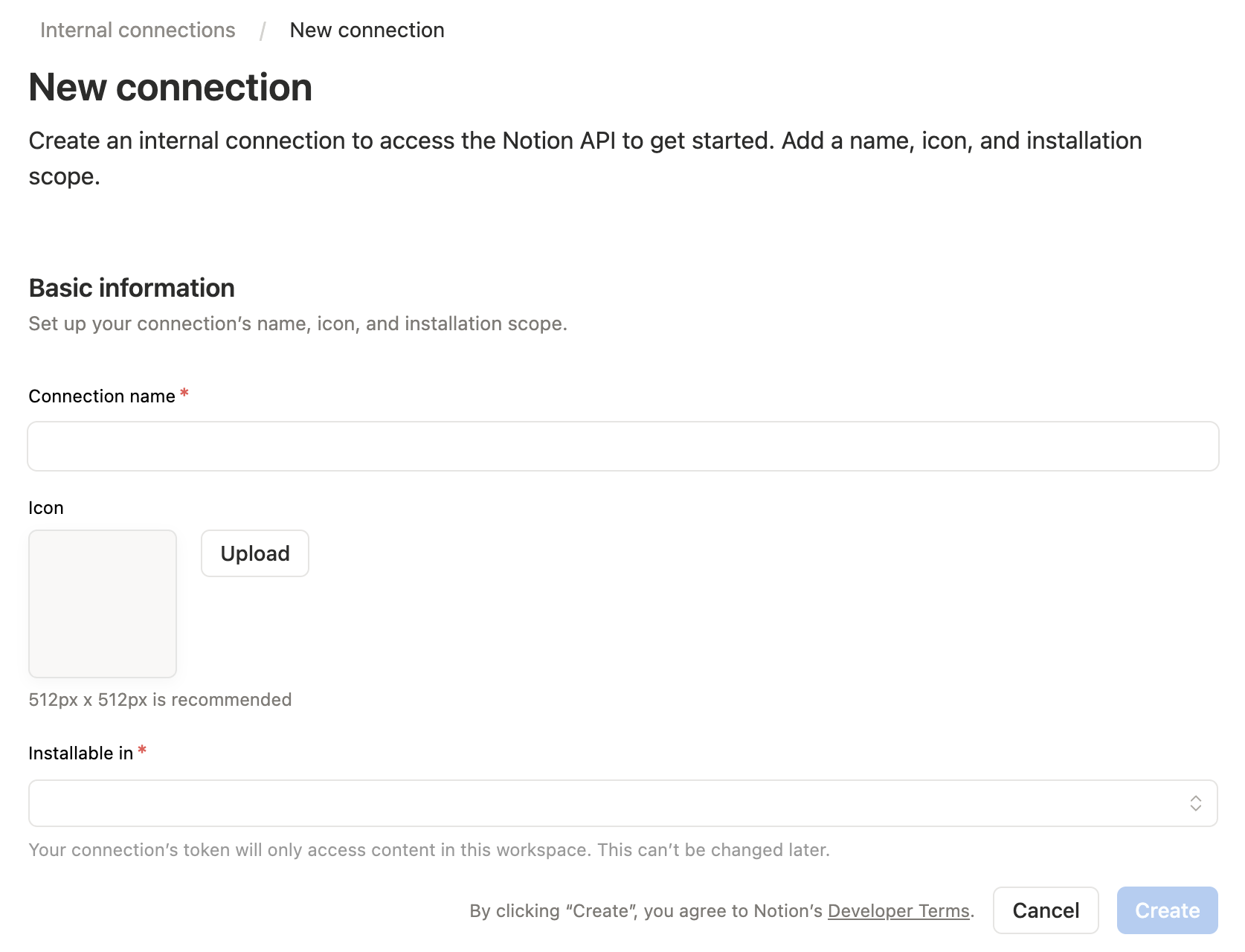
Open the Notion integrations dashboard, then create a new internal integration.
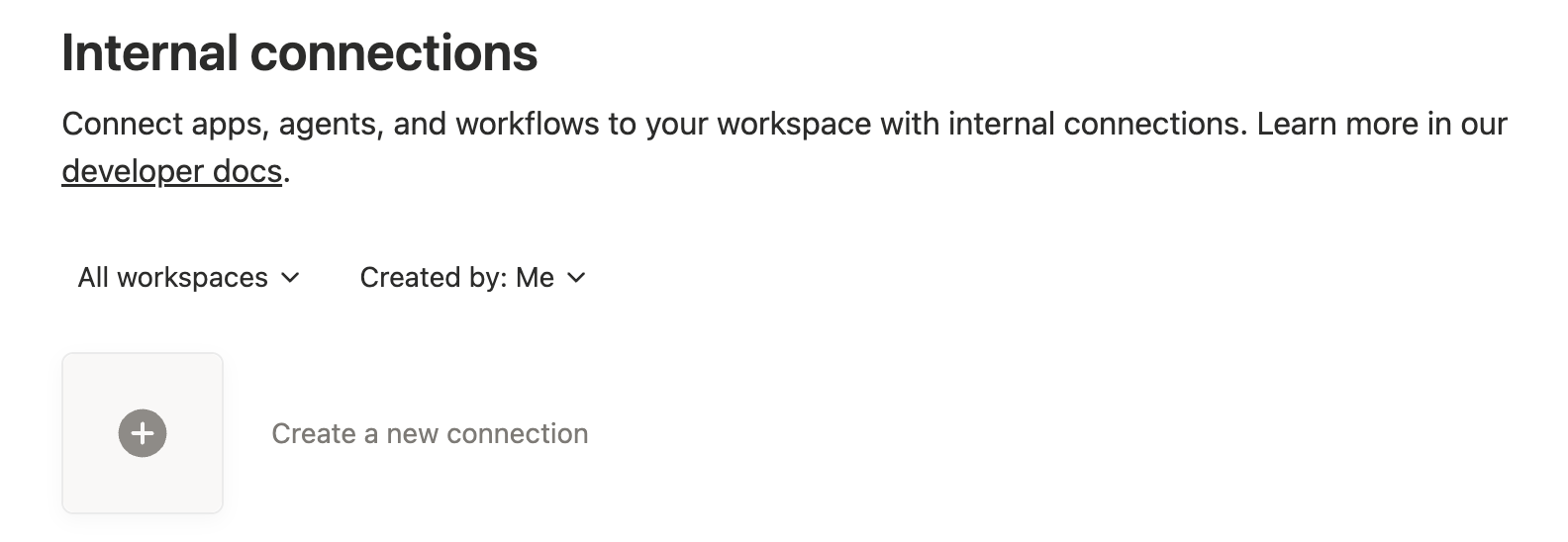
Internal connections New connections

2. Configure capabilities

Grant only the capabilities you need:

  • Read content: required for search, page reads, data source retrieval, and queries.
  • Insert content: required for creating pages/items and appending blocks.
  • Update content: required for updating pages, blocks, and data source schemas.
  • Read comments / Insert comments: required only for comment tools.
  • User information: required only when using user lookup tools.

For full functionality during setup, enable read, insert, and update content. Add comment or user capabilities only if you plan to use those tools.

Notion integration capabilities

3. Grant content access

Open the Content access tab for your integration, then select the pages or databases you want the MCP server to read or edit.

You can also grant access from the target Notion page or database: open the ... menu, choose Connections, then add your integration.

Notion only lets an integration access pages and databases that have been shared with it. A connection added to a page can also access that page's children.

Edit integration content access

4. Copy the internal integration token

Copy the integration secret. This value becomes NOTION_API_TOKEN in your MCP host config.

Copy internal integration token

5. Configure your MCP host

For Cursor, Claude Desktop, and other MCP hosts, add this server config to your MCP settings:

{
  "mcpServers": {
    "notion": {
      "command": "npx",
      "args": ["-y", "@suekou/mcp-notion-server"],
      "env": {
        "NOTION_API_TOKEN": "secret_xxxxxxxxxxxxxxxxxxxxxxxxxxxxxxxxxxxxxxxxxxx"
      }
    }
  }
}

For a locally built checkout:

{
  "mcpServers": {
    "notion": {
      "command": "node",
      "args": ["/absolute/path/to/suekou-mcp-notion-server/build/index.js"],
      "env": {
        "NOTION_API_TOKEN": "secret_xxxxxxxxxxxxxxxxxxxxxxxxxxxxxxxxxxxxxxxxxxx"
      }
    }
  }
}

Recommended Workflow

  1. Use notion_find to locate a page or data source.
  2. Use notion_read_page for page context and editable block IDs.
  3. Use notion_inspect_data_source before querying or creating data source items.
  4. Use notion_query_data_source_by_values and notion_create_data_source_item_from_values for common data source work.
  5. Use notion_append_markdown, notion_append_content, notion_update_content, or notion_update_content_batch for normal page edits.
  6. Fall back to raw JSON tools only when the simplified tools do not cover the Notion API shape you need.

For Developers

These references are mainly for development, customization, and advanced MCP workflows:

  • Configuration: environment variables, command-line arguments, MCP host examples, development commands, and troubleshooting.
  • Tools: complete tool reference grouped by workflow area.
  • Workflows: practical read, write, data source, migration, and error-handling guidance.
  • MCP Apps: interactive Data Source Explorer and Page Workbench details.

Development

This project uses Node.js 22 or newer and pnpm.

pnpm install --frozen-lockfile
pnpm run build
pnpm test

Use the MCP inspector during local development:

pnpm run inspector

License

This MCP server is licensed under the MIT License. This means you are free to use, modify, and distribute the software, subject to the terms and conditions of the MIT License. For more details, please see the LICENSE file in the project repository.

mcp-notion-server FAQ

Do I need a secret from Notion?
Yes. You create a connection in Notion's settings and paste its secret into your app.
Can it see my whole workspace?
Only the pages and databases you deliberately share with the connection you created.
Can I use this to write meeting notes straight into Notion?
Yes — it can create a fresh page or add to one you already have.
Which apps does it work in?
Claude Desktop and Cursor are documented, and other apps that support these connections work the same way.
How hard is setup?
A few clicks inside Notion, then one short settings block pasted into your app.
Could it change something by accident?
It only gets the permissions you grant. Leave out the update permission and it can read but not edit.