


This project provides a server implementation based on the Model Context Protocol (MCP) that acts as a wrapper around OpenAI's Image Generation and Editing APIs (see OpenAI documentation).
- Exposes OpenAI image generation capabilities through MCP tools.
- Supports
text-to-imagegeneration using models like DALL-E 2, DALL-E 3, and gpt-image-1 (if available/enabled). - Supports
image-to-imageediting using DALL-E 2 and gpt-image-1 (if available/enabled). - Configurable via environment variables and command-line arguments.
- Handles various parameters like size, quality, style, format, etc.
- Saves generated/edited images to temporary files and returns the path along with the base64 data.
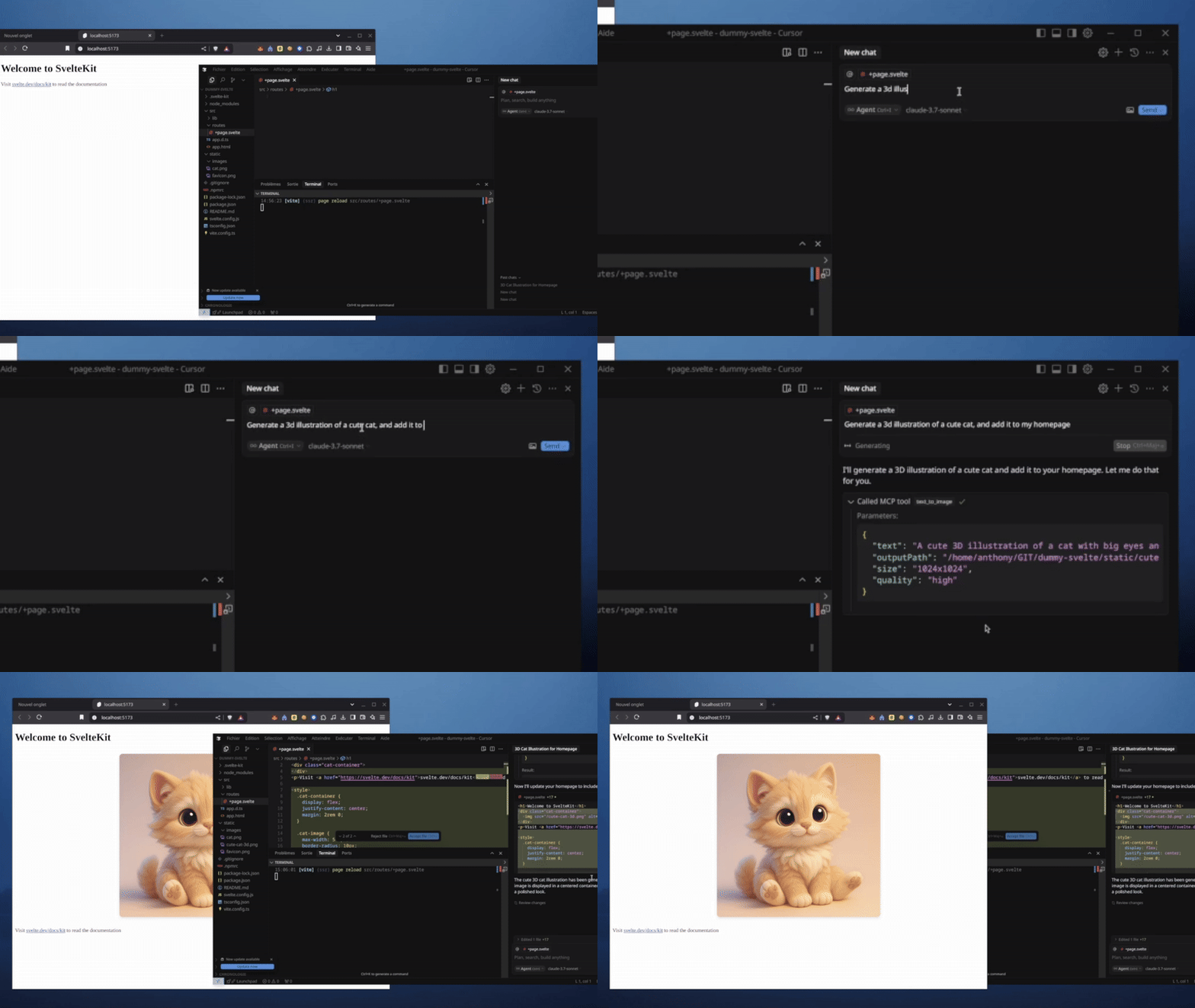
Here's an example of generating an image directly in Cursor using the text-to-image tool integrated via MCP:
You can run the server directly from npm using npx (requires Node.js and npm):
npx imagegen-mcp [options]See the Running the Server section for more details on options and running locally.
- Node.js (v18 or later recommended)
- npm or yarn
- An OpenAI API key
You can easily integrate this server with Cursor to use its image generation capabilities directly within the editor:
-
Open Cursor Settings:
- Go to
File > Preferences > Cursor Settings(or use the shortcutCtrl+,/Cmd+,).
- Go to
-
Navigate to MCP Settings:
- Search for "MCP" in the settings search bar.
- Find the "Model Context Protocol: Custom Servers" setting.
-
Add Custom Server:
- Click on "Edit in settings.json".
- Add a new entry to the
mcpServersarray. It should look something like this:
"mcpServers": [
    "image-generator-gpt-image": {
        "command": "npx imagegen-mcp --models gpt-image-1",
        "env": {
            "OPENAI_API_KEY": "xxx"
        }
    }
  // ... any other custom servers ...
]
- Customize the command:
- You can change the
--modelsargument in thecommandfield to specify which models you want Cursor to have access to (e.g.,--models dall-e-3or--models gpt-image-1). Make sure your OpenAI API key has access to the selected models.
- You can change the
-
Save Settings:
- Save the
settings.jsonfile.
- Save the
Cursor should now recognize the "OpenAI Image Gen" server, and its tools (text-to-image, image-to-image) will be available in the MCP tool selection list (e.g., when using @ mention in chat or code actions).
-
Clone the repository:
git clone <your-repository-url>
cd <repository-directory>
-
Install dependencies:
npm install # or yarn install -
Configure Environment Variables: Create a
.envfile in the project root by copying the example:cp .env.example .env
Edit the
.envfile and add your OpenAI API key:OPENAI_API_KEY=your_openai_api_key_here
To build the TypeScript code into JavaScript:
npm run build
# or
yarn build
This will compile the code into the dist directory.
This section provides details on running the server locally after cloning and setup. For a quick start without cloning, see the Quick Run with npx section.
Using ts-node (for development):
npx ts-node src/index.ts [options]Using the compiled code:
node dist/index.js [options]Options:
--models <model1> <model2> ...: Specify which OpenAI models the server should allow. If not provided, it defaults to allowing all models defined insrc/libs/openaiImageClient.ts(currently gpt-image-1, dall-e-2, dall-e-3).- Example using
npx(also works for local runs):... --models gpt-image-1 dall-e-3 - Example after cloning:
node dist/index.js --models dall-e-3 dall-e-2
- Example using
The server will start and listen for MCP requests via standard input/output (using StdioServerTransport).
The server exposes the following MCP tools:
Generates an image based on a text prompt.
Parameters:
text(string, required): The prompt to generate an image from.model(enum, optional): The model to use (e.g.,gpt-image-1,dall-e-2,dall-e-3). Defaults to the first allowed model.size(enum, optional): Size of the generated image (e.g.,1024x1024,1792x1024). Defaults to1024x1024. Check OpenAI documentation for model-specific size support.style(enum, optional): Style of the image (vividornatural). Only applicable todall-e-3. Defaults tovivid.output_format(enum, optional): Format (png,jpeg,webp). Defaults topng.output_compression(number, optional): Compression level (0-100). Defaults to 100.moderation(enum, optional): Moderation level (low,auto). Defaults tolow.background(enum, optional): Background (transparent,opaque,auto). Defaults toauto.transparentrequiresoutput_formatto bepngorwebp.quality(enum, optional): Quality (standard,hd,auto, ...). Defaults toauto.hdonly applicable todall-e-3.n(number, optional): Number of images to generate. Defaults to 1. Note:dall-e-3only supportsn=1.
Returns:
content: An array containing:- A
textobject containing the path to the saved temporary image file (e.g.,/tmp/uuid.png).
- A
Edits an existing image based on a text prompt and optional mask.
Parameters:
images(string, required): An array of file paths to local images.prompt(string, required): A text description of the desired edits.mask(string, optional): A file path of mask image (PNG). Transparent areas indicate where the image should be edited.model(enum, optional): The model to use. Onlygpt-image-1anddall-e-2are supported for editing. Defaults to the first allowed model.size(enum, optional): Size of the generated image (e.g.,1024x1024). Defaults to1024x1024.dall-e-2only supports256x256,512x512,1024x1024.output_format(enum, optional): Format (png,jpeg,webp). Defaults topng.output_compression(number, optional): Compression level (0-100). Defaults to 100.quality(enum, optional): Quality (standard,hd,auto, ...). Defaults toauto.n(number, optional): Number of images to generate. Defaults to 1.
Returns:
content: An array containing:- A
textobject containing the path to the saved temporary image file (e.g.,/tmp/uuid.png).
- A
- Linting:
npm run lintoryarn lint - Formatting:
npm run formatoryarn format(if configured inpackage.json)
Pull Requests (PRs) are welcome! Please feel free to submit improvements or bug fixes.