altium-mcp

MCP.Pizza Chef: coffeenmusic

Running on Windows next to a licensed copy of Altium Designer, this add-on hands Claude Desktop 36 tools that read your open schematic and circuit board — part lists, nets, layer stackups, design rules — and also change them, placing parts, drawing symbols and footprints, and running output jobs. There is no read-only mode and no confirmation step before a change, so use it on a saved project you can roll back. No account or key is needed; the Altium licence is the real cost.

Images/Design
Other

Use This MCP server To

List every part on my board from one manufacturer Draw a schematic symbol from a datasheet I attached Create a circuit board footprint for a surface-mount part Copy a finished layout block onto a repeated section Check part clearances and show me a picture of the result Run all my output jobs without opening each one

README

Altium MCP Server

TLDR: Use Claude to control or ask questions about your Altium project. This is a Model Context Protocol (MCP) server that provides an interface to interact with Altium Designer through Python. The server allows for querying and manipulation of PCB designs programmatically.

Example commands

  • Run all output jobs
  • Create a symbol for the part in the attached datasheet and use the currently open symbol as a reference example.
  • Create a schematic symbol from the attached MPM3650 switching regulator datasheet and make sure to strictly follow the symbol placement rules. (Note: Need to open a schematic library. Uses AppData\Roaming\Claude\Claude Extensions\local.dxt.altium-mcp\server\symbol_placement_rules.txt description as pin placement rules. Please modify for your own preferences.)
  • Create an op-amp symbol with a triangle body like the other op-amps in my library (symbols support line/polygon/arc/ellipse/label body graphics, not just rectangles)
  • Find me the LM358 symbol in my opamp library and open it
  • Create a multi-part symbol for a quad op-amp from the attached LM324 datasheet (creates parts A, B, C, D with shared V+/V- power pins)
  • Create a PCB footprint for the SMD part in the attached datasheet and add it to my open PcbLib
  • Duplicate my selected layout. (Will prompt user to now select destination components. Supports Component, Track, Arc, Via, Polygon, & Region)
  • Show all my inner layers. Show the top and bottom layer. Turn off solder paste.
  • Get me all parts on my design made by Molex
  • Give me the description and part number of U4
  • Place the selected parts on my pcb with best practices for a switching regulator, then verify clearances and show me a screenshot of the result
  • Give me a list of all IC designators in my design
  • Get me all length matching rules

Installing the MCP Server

The easiest way to install is to use Claude Code, point it to this repo and ask it to install it for you. Or alternatively, see below.

Watch on YouTube

  1. Make sure Claude has Python 3.10+ installed: drop down > File > Settings > Extensions > Advanced > Python. If not, install Python and add it to PATH.
  2. Download the altium-mcp.dxt desktop extension file from releases
  3. In Claude Desktop on Windows: drop down > File > Settings > Extensions > Advanced > Install Extension... Select the .dxt file

You shouldn't need to restart Claude and you should now see altium-mcp in the tool menu near the search bar.
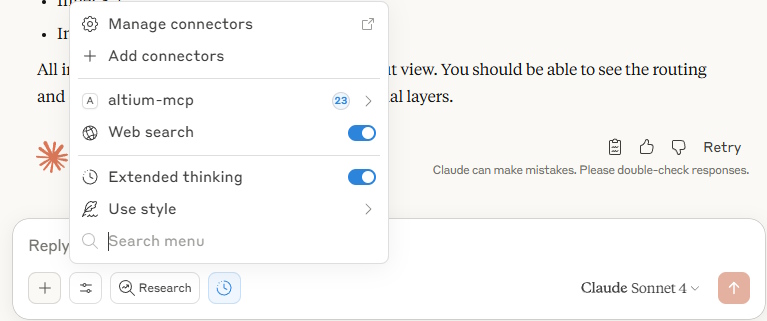
altium-mcp in the tools menu

Creating a new .dxt (For Developers)

Bootstrap Venv (Recommended)

altium-mcp FAQ

Do I need to own Altium Designer?
Yes. This drives a copy of Altium Designer already installed and licensed on your machine, and that licence is a paid commercial subscription. It is also Windows-only, because it talks to the Altium window directly.
Does it need an access key or an online account?
No. Nothing is sent to a third-party service and there is no key to sign up for. It talks to the Altium program running on your own computer.
Can it change my design, or does it only read it?
It changes things. Roughly a third of its 36 tools write to your project — placing and moving parts, creating symbols and footprints, adding net classes, running output jobs. There is no read-only switch and nothing asks you to confirm first, so work on a saved, backed-up project.
Can I use this to build a symbol from a PDF datasheet?
Yes. Attach the datasheet in Claude Desktop and ask for a schematic symbol or a board footprint; it can place pins, build multi-part symbols for things like quad op-amps, and add the result to your open library.
Which apps does it work in?
It is packaged as a Claude Desktop extension for Windows. Other assistants that run local tools could in principle start it, but the ready-made installer and the instructions target Claude Desktop.
How hard is the setup?
Moderate. You download an extension file from the project's releases page, make sure Python 3.10 or newer is installed and on your system path, and point the tool at your Altium program file the first time it runs.
Is there anything I should be careful about?
Two things. One tool runs code you or the assistant writes directly inside Altium; it is described as a sandbox, but that only means a separate script file — the code still has full reach over your open design and can damage it. Separately, design details are passed back and forth through files in the shared C:\Users\Public folder, which every account on that computer can read.