node-code-sandbox-mcp

MCP.Pizza Chef: alfonsograziano

Your assistant writes a small JavaScript program, runs it inside a throwaway Docker container, and hands back whatever it printed or saved, including charts, images and converted files. Seven tools cover one-shot runs, longer sessions, shell commands, package type lookups and npm search. Nothing needs to be paid for or signed up to, but Docker must be installed and running first. Scripts run with your computer's network wide open, and the code has not been updated since November 2025.

Coding
Data
Files/PDF

Use This MCP server To

Turn a list of numbers into a chart image Try out a small script without installing anything myself Generate a QR code and save it to a folder Rename or resize a batch of files in one go Check what a package does before I rely on it Convert a data file into a tidier format

README

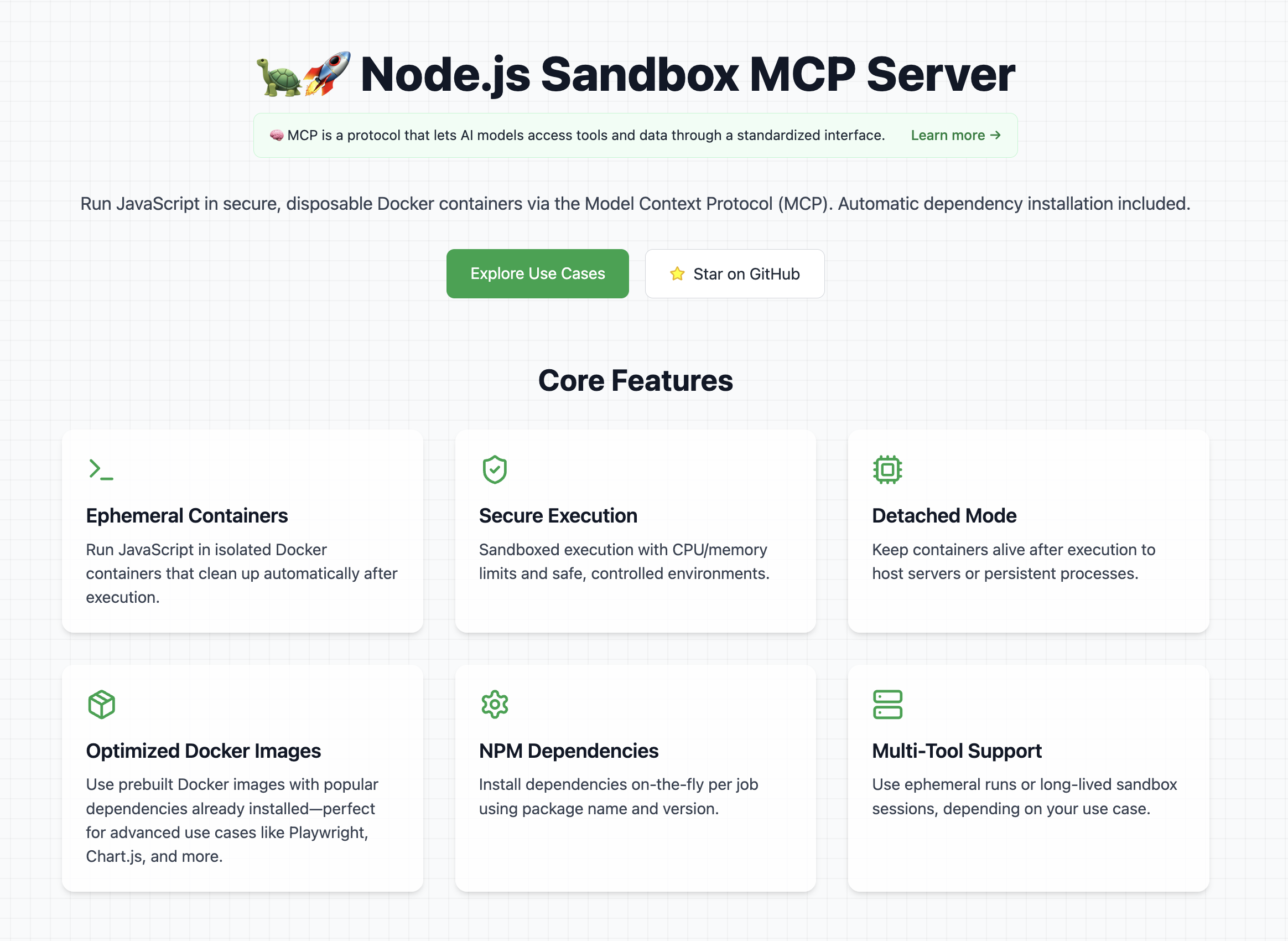
๐Ÿข๐Ÿš€ Node.js Sandbox MCP Server

Node.js server implementing the Model Context Protocol (MCP) for running arbitrary JavaScript in ephemeral Docker containers with onโ€‘theโ€‘fly npm dependency installation.

Website Preview

๐Ÿ‘‰ Look at the official website

๐Ÿ“ฆ Available on Docker Hub

Features

  • Start and manage isolated Node.js sandbox containers
  • Execute arbitrary shell commands inside containers
  • Install specified npm dependencies per job
  • Run ES module JavaScript snippets and capture stdout
  • Tear down containers cleanly
  • Detached Mode: Keep the container alive after script execution (e.g. for long-running servers)

Note: Containers run with controlled CPU/memory limits.

Explore Cool Use Cases

If you want ideas for cool and powerful ways to use this library, check out the use cases section on the website It contains a curated list of prompts, examples, and creative experiments you can try with the Node.js Sandbox MCP Server.

โš ๏ธ Prerequisites

To use this MCP server, Docker must be installed and running on your machine.

Tip: Pre-pull any Docker images you'll need to avoid delays during first execution.

Example recommended images:

  • node:lts-slim
  • mcr.microsoft.com/playwright:v1.55.0-noble
  • alfonsograziano/node-chartjs-canvas:latest

Getting started

In order to get started with this MCP server, first of all you need to connect it to a client (for example Claude Desktop).

Once it's running, you can test that it's fully working with a couple of test prompts:

  • Validate that the tool can run:

    Create and run a JS script with a console.log("Hello World")

    This should run a console.log and in the tool response you should be able to see Hello World.

  • Validate that you can install dependencies and save files

    Create and run a JS script that generates a QR code for the URL `https://nodejs.org/en`, and save it as `qrcode.png` **Tip:** Use the `qrcode` package.

    This should create a file in your mounted directory (for example the Desktop) called "qrcode.png"

Usage with Claude Desktop

Add this to your claude_desktop_config.json: You can follow the Official Guide to install this MCP server

{
  "mcpServers": {
    "js-sandbox": {
      "command": "docker",
      "args": [
        "run",
        "-i",
        "--rm",
        "-v",
        "/var/run/docker.sock:/var/run/docker.sock",
        "-v",
        "$HOME/Desktop/sandbox-output:/root",
        "-e",
        "FILES_DIR=$HOME/Desktop/sandbox-output",
        "-e",
        "SANDBOX_MEMORY_LIMIT=512m", // optional
        "-e",
        "SANDBOX_CPU_LIMIT=0.75", // optional
        "mcp/node-code-sandbox"
      ]
    }
  }
}

or with NPX:

{
  "mcpServers": {
    "node-code-sandbox-mcp": {
      "type": "stdio",
      "command": "npx",
      "args": ["-y", "node-code-sandbox-mcp"],
      "env": {
        "FILES_DIR": "/Users/alfonsograziano/Desktop/node-sandbox",
        "SANDBOX_MEMORY_LIMIT": "512m", // optional
        "SANDBOX_CPU_LIMIT": "0.75" // optional
      }
    }
  }
}

Note: Ensure your working directory points to the built server, and Docker is installed/running.

Docker

Run the server in a container (mount Docker socket if needed), and pass through your desired host output directory as an env var:

# Build locally if necessary
# docker build -t mcp/node-code-sandbox .

docker run --rm -it \
  -v /var/run/docker.sock:/var/run/docker.sock \
  -v "$HOME/Desktop/sandbox-output":"/root" \
  -e FILES_DIR="$HOME/Desktop/sandbox-output" \
  -e SANDBOX_MEMORY_LIMIT="512m" \
  -e SANDBOX_CPU_LIMIT="0.5" \
  mcp/node-code-sandbox stdio

This bind-mounts your host folder into the container at the same absolute path and makes FILES_DIR available inside the MCP server.

Ephemeral usage โ€“ no persistent storage
docker run --rm -it \
  -v /var/run/docker.sock:/var/run/docker.sock \
  alfonsograziano/node-code-sandbox-mcp stdio

Usage with VS Code

Quick install buttons (VS Code & Insiders):

Install js-sandbox-mcp (NPX) Install js-sandbox-mcp (Docker)

Manual configuration: Add to your VS Code settings.json or .vscode/mcp.json:

"mcp": {
    "servers": {
        "js-sandbox": {
            "command": "docker",
            "args": [
                "run",
                "-i",
                "--rm",
                "-v", "/var/run/docker.sock:/var/run/docker.sock",
                "-v", "$HOME/Desktop/sandbox-output:/root", // optional
                "-e", "FILES_DIR=$HOME/Desktop/sandbox-output",  // optional
                "-e", "SANDBOX_MEMORY_LIMIT=512m",
                "-e", "SANDBOX_CPU_LIMIT=1",
                "mcp/node-code-sandbox"
              ]
        }
    }
}

API

Tools

run_js_ephemeral

Run a one-off JS script in a brand-new disposable container.

Inputs:

  • image (string, optional): Docker image to use (default: node:lts-slim).
  • code (string, required): JavaScript source to execute.
  • dependencies (array of { name, version }, optional): NPM packages and versions to install (default: []).

Behavior:

  1. Creates a fresh container.
  2. Writes your index.js and a minimal package.json.
  3. Installs the specified dependencies.
  4. Executes the script.
  5. Tears down (removes) the container.
  6. Returns the captured stdout.
  7. If your code saves any files in the current directory, these files will be returned automatically.
    • Images (e.g., PNG, JPEG) are returned as image content.
    • Other files (e.g., .txt, .json) are returned as resource content.
    • Note: the file saving feature is currently available only in the ephemeral tool.

Tip: To get files back, simply save them during your script execution.

Example Call:

{
  "name": "run_js_ephemeral",
  "arguments": {
    "image": "node:lts-slim",
    "code": "console.log('One-shot run!');",
    "dependencies": [{ "name": "lodash", "version": "^4.17.21" }],
  },
}

Example to save a file:

import fs from 'fs/promises';

await fs.writeFile('hello.txt', 'Hello world!');
console.log('Saved hello.txt');

This will return the console output and the hello.txt file.

sandbox_initialize

Start a fresh sandbox container.

  • Input:
    • image (string, optional, default: node:lts-slim): Docker image for the sandbox
    • port (number, optional): If set, maps this container port to the host
  • Output: Container ID string

sandbox_exec

Run shell commands inside the running sandbox.

  • Input:
    • container_id (string): ID from sandbox_initialize
    • commands (string[]): Array of shell commands to execute
  • Output: Combined stdout of each command

run_js

Install npm dependencies and execute JavaScript code.

  • Input:

    • container_id (string): ID from sandbox_initialize
    • code (string): JS source to run (ES modules supported)
    • dependencies (array of { name, version }, optional, default: []): npm package names โ†’ semver versions
    • listenOnPort (number, optional): If set, leaves the process running and exposes this port to the host (Detached Mode)
  • Behavior:

    1. Creates a temp workspace inside the container
    2. Writes index.js and a minimal package.json
    3. Runs npm install --omit=dev --ignore-scripts --no-audit --loglevel=error
    4. Executes node index.js and captures stdout, or leaves process running in background if listenOnPort is set
    5. Cleans up workspace unless running in detached mode
  • Output: Script stdout or background execution notice

sandbox_stop

Terminate and remove the sandbox container.

  • Input:
    • container_id (string): ID from sandbox_initialize
  • Output: Confirmation message

search_npm_packages

Search for npm packages by a search term and get their name, description, and a README snippet.

  • Input:

    • searchTerm (string, required): The term to search for in npm packages. Should contain all relevant context. Use plus signs (+) to combine related terms (e.g., "react+components" for React component libraries).
    • qualifiers (object, optional): Optional qualifiers to filter the search results:
      • author (string, optional): Filter by package author name
      • maintainer (string, optional): Filter by package maintainer name
      • scope (string, optional): Filter by npm scope (e.g., "@vue" for Vue.js packages)
      • keywords (string, optional): Filter by package keywords
      • not (string, optional): Exclude packages matching this criteria (e.g., "insecure")
      • is (string, optional): Include only packages matching this criteria (e.g., "unstable")
      • boostExact (string, optional): Boost exact matches for this term in search results
  • Behavior:

    1. Searches the npm registry using the provided search term and qualifiers
    2. Returns up to 5 packages sorted by popularity
    3. For each package, provides name, description, and README snippet (first 500 characters)
  • Output: JSON array containing package details with name, description, and README snippet

Usage Tips

  • Session-based tools (sandbox_initialize โž” run_js โž” sandbox_stop) are ideal when you want to:
    • Keep a long-lived sandbox container open.
    • Run multiple commands or scripts in the same environment.
    • Incrementally install and reuse dependencies.
  • One-shot execution with run_js_ephemeral is perfect for:
    • Quick experiments or simple scripts.
    • Cases where you don't need to maintain state or cache dependencies.
    • Clean, atomic runs without worrying about manual teardown.
  • Detached mode is useful when you want to:
    • Spin up servers or long-lived services on-the-fly
    • Expose and test endpoints from running containers

Choose the workflow that best fits your use-case!

Build

Compile and bundle:

npm install
npm run build

License

MIT License

Permission is hereby granted, free of charge, to any person obtaining a copy of this software and associated documentation files (the "Software"), to deal in the Software without restriction, including without limitation the rights to use, copy, modify, merge, publish, distribute, sublicense, and/or sell copies of the Software, and to permit persons to whom the Software is furnished to do so, subject to the following conditions:

The above copyright notice and this permission notice shall be included in all copies or substantial portions of the Software.

THE SOFTWARE IS PROVIDED "AS IS", WITHOUT WARRANTY OF ANY KIND, EXPRESS OR IMPLIED, INCLUDING BUT NOT LIMITED TO THE WARRANTIES OF MERCHANTABILITY, FITNESS FOR A PARTICULAR PURPOSE AND NONINFRINGEMENT. IN NO EVENT SHALL THE AUTHORS OR COPYRIGHT HOLDERS BE LIABLE FOR ANY CLAIM, DAMAGES OR OTHER LIABILITY, WHETHER IN AN ACTION OF CONTRACT, TORT OR OTHERWISE, ARISING FROM, OUT OF OR IN CONNECTION WITH THE SOFTWARE OR THE USE OR OTHER DEALINGS IN THE SOFTWARE.

node-code-sandbox-mcp FAQ

Is this still being maintained?
The code has not changed since November 2025, so it has been quiet for roughly eight months. It still installs and runs, but nothing new has landed for a while and open issues are sitting unanswered.
Do I need to pay for anything or get a key?
No. There is no account and no key. You do need Docker Desktop installed and running on your computer, which is free for personal use but has paid tiers for larger companies.
How isolated is the sandbox really?
Less than the description suggests. Memory and processor caps are applied only for the three images the project knows about, so a different image can run with no cap at all. Every run also uses your computer's own network connection, meaning a script can reach anything on your home network and any private service running on your machine.
Can I use this to make a chart from my own numbers?
Yes, and this is one of its best uses. You describe the chart, it writes and runs the drawing code, and the finished image comes back into the chat and into your output folder.
Which apps does it work in?
Claude Desktop and VS Code are the documented ones. Any app that can start a local MCP server from a command will work the same way.
How do I actually get files back?
Only if you set an output folder when installing it and the script writes into the folder it mounts there. Without that setting there is no shared folder at all, and you get text output only.
Is the Docker install option safe to copy?
Read it before you paste. The suggested Docker command shares your machine's Docker control socket with the container, which gives it broad control over containers on your computer. The plain npx option does not do that.
How hard is setup for a non-developer?
Fairly hard. You need Docker installed, running and pre-loaded with the right images, and you edit a config file by hand. Budget an evening if you have never used Docker.