mcp-hetzner

MCP.Pizza Chef: dkruyt

Thirty tools, exactly as many as the project claims, cover servers, disks, firewalls and access keys: listing them, creating them, powering them on and off, rebooting, resizing disks and deleting things. Two cautions before installing. Creating a server starts billing you by the hour, and every delete happens the instant you ask, with no confirmation and nothing to undo it. If you only want to look, Hetzner will issue you a read-only token, which blocks all of that. Untouched since April 2025.

Unmaintained · No commits in 16 months.
Coding
Other

Use This MCP server To

See every server I am currently paying for Reboot a server that has locked up Power off a machine I am not using tonight Open a port on my web server's firewall Add more space to a disk that is filling up Check which server sizes and locations are available

README

Hetzner Cloud MCP Server

A Model Context Protocol (MCP) server for interacting with the Hetzner Cloud API. This server allows language models to manage Hetzner Cloud resources through structured functions.
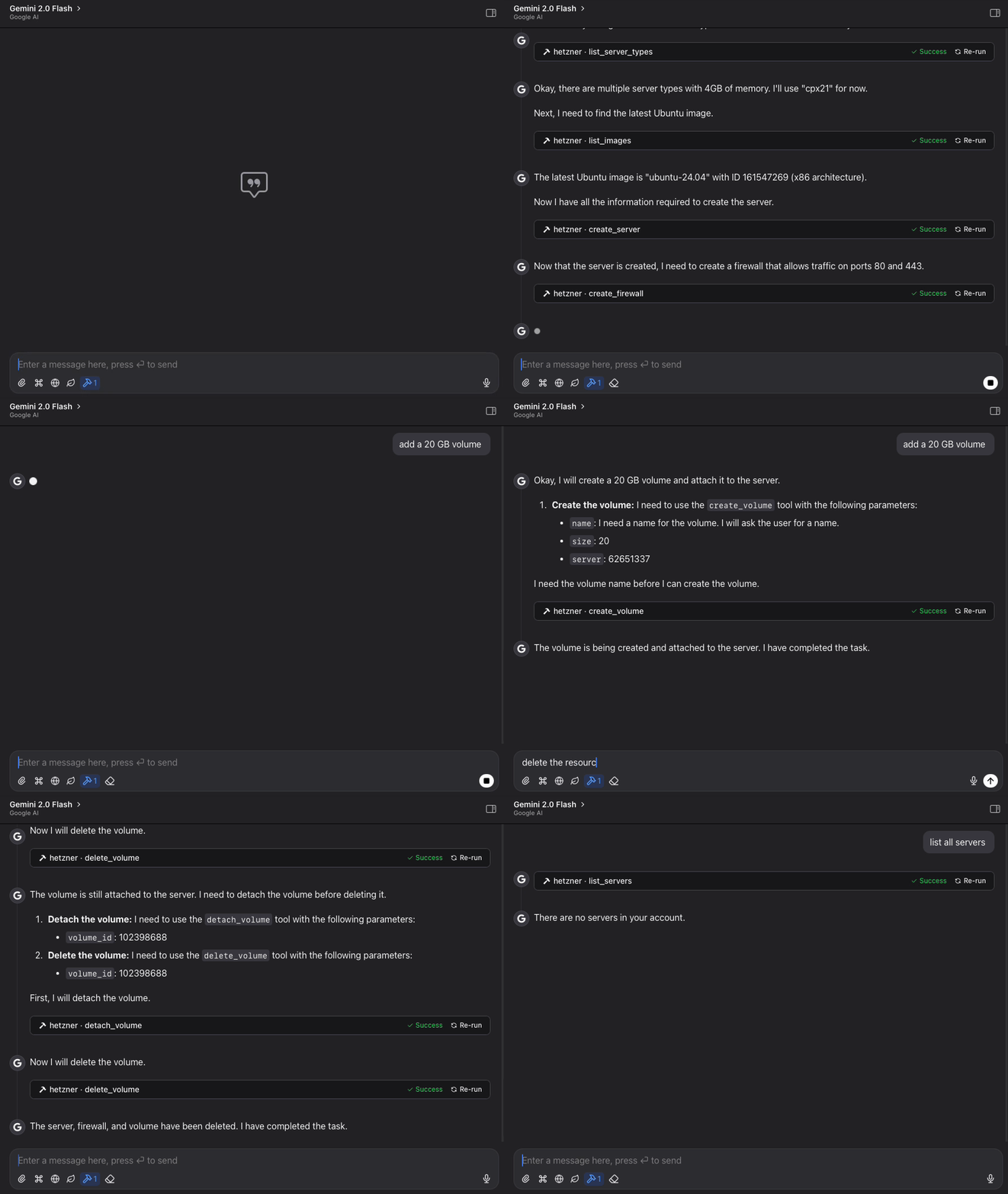
MCP Hetzner Demo

Features

  • List, create, and manage Hetzner Cloud servers
  • Create, attach, detach, and resize volumes
  • Manage firewall rules and apply them to servers
  • Create and manage SSH keys for secure server access
  • View available images, server types, and locations
  • Power on/off and reboot servers
  • Simple, structured API for language model interaction
  • Claude Code integration for managing Hetzner resources directly from Claude

Requirements

  • Python 3.11+
  • Hetzner Cloud API token

Installation

Method 1: Direct Installation

  1. Clone this repository:
git clone https://github.com/dkruyt/mcp-hetzner.git
cd mcp-hetzner
  1. Install dependencies:
pip install -e .
  1. Create a .env file and add your Hetzner Cloud API token:
HCLOUD_TOKEN=your_hetzner_cloud_api_token_here

Method 2: Install as a Package

# Install directly from the repository
pip install git+https://github.com/dkruyt/mcp-hetzner.git

After installing as a package, create a .env file in your working directory with your Hetzner Cloud API token.

Usage

Starting the Server

Option 1: Run the installed package:

# Using default stdio transport
mcp-hetzner

# Using SSE transport
mcp-hetzner --transport sse

# Setting a custom port
mcp-hetzner --transport sse --port 8000

Option 2: Run as a module:

python -m mcp_hetzner
# or
python -m mcp_hetzner.server

The server supports two transport modes:

  • stdio (default): Standard I/O transport, typically used with Claude Code
  • sse: Server-Sent Events transport, suitable for HTTP clients

By default, the server runs on localhost:8080. You can customize the host and port by:

  1. Setting the MCP_HOST and MCP_PORT environment variables in your .env file
  2. Using the --port command line argument (overrides the environment variable)

Using with Claude Code

To use with Claude Code, run the server with SSE transport:

# Start the server with SSE transport
mcp-hetzner --transport sse --port 8080

# In another terminal, connect Claude Code to the server
claude-code --mcp-server localhost:8080

Testing the API

A test client is included to verify the server functionality:

python -m mcp_hetzner.client

Example Workflows

Basic Server Management

# List all your servers
list_servers

# Create a new server
create_server {
  "name": "web-server", 
  "server_type": "cx11", 
  "image": "ubuntu-22.04"
}

# Power operations
power_off {"server_id": 12345}
power_on {"server_id": 12345}
reboot {"server_id": 12345}

# Delete a server when no longer needed
delete_server {"server_id": 12345}

Volume Management

# List all volumes
list_volumes

# Create a new volume
create_volume {
  "name": "data-volume",
  "size": 10,
  "location": "nbg1",
  "format": "ext4"
}

# Attach volume to a server
attach_volume {
  "volume_id": 12345,
  "server_id": 67890,
  "automount": true
}

# Detach volume from server
detach_volume {
  "volume_id": 12345
}

# Resize a volume (can only increase size)
resize_volume {
  "volume_id": 12345,
  "size": 50
}

# Delete a volume when no longer needed
delete_volume {
  "volume_id": 12345
}

Firewall Management

# List all firewalls
list_firewalls

# Create a firewall for web servers
create_firewall {
  "name": "web-firewall",
  "rules": [
    {
      "direction": "in",
      "protocol": "tcp",
      "port": "80",
      "source_ips": ["0.0.0.0/0", "::/0"]
    },
    {
      "direction": "in",
      "protocol": "tcp",
      "port": "443",
      "source_ips": ["0.0.0.0/0", "::/0"]
    }
  ]
}

# Apply firewall to a server
apply_firewall_to_resources {
  "firewall_id": 12345,
  "resources": [
    {
      "type": "server",
      "server_id": 67890
    }
  ]
}

SSH Key Management

# List all SSH keys
list_ssh_keys

# Create a new SSH key
create_ssh_key {
  "name": "my-laptop",
  "public_key": "ssh-rsa AAAAB3NzaC1yc2EAAA... user@laptop"
}

# Use the SSH key when creating a server
create_server {
  "name": "secure-server",
  "server_type": "cx11",
  "image": "ubuntu-22.04",
  "ssh_keys": [12345]
}

# Update an SSH key's name
update_ssh_key {
  "ssh_key_id": 12345,
  "name": "work-laptop"
}

# Delete an SSH key
delete_ssh_key {
  "ssh_key_id": 12345
}

Infrastructure Planning

# Explore available resources
list_server_types
list_images
list_locations

# Get specific server information
get_server {"server_id": 12345}

Available Functions

The MCP server provides the following functions:

Server Management

  • list_servers: List all servers in your Hetzner Cloud account
  • get_server: Get details about a specific server
  • create_server: Create a new server
  • delete_server: Delete a server
  • power_on: Power on a server
  • power_off: Power off a server
  • reboot: Reboot a server

Volume Management

  • list_volumes: List all volumes in your Hetzner Cloud account
  • get_volume: Get details about a specific volume
  • create_volume: Create a new volume
  • delete_volume: Delete a volume
  • attach_volume: Attach a volume to a server
  • detach_volume: Detach a volume from a server
  • resize_volume: Increase the size of a volume

Firewall Management

  • list_firewalls: List all firewalls in your Hetzner Cloud account
  • get_firewall: Get details about a specific firewall
  • create_firewall: Create a new firewall
  • update_firewall: Update firewall name or labels
  • delete_firewall: Delete a firewall
  • set_firewall_rules: Set or update firewall rules
  • apply_firewall_to_resources: Apply a firewall to servers or server groups
  • remove_firewall_from_resources: Remove a firewall from servers or server groups

SSH Key Management

  • list_ssh_keys: List all SSH keys in your Hetzner Cloud account
  • get_ssh_key: Get details about a specific SSH key
  • create_ssh_key: Create a new SSH key
  • update_ssh_key: Update SSH key name or labels
  • delete_ssh_key: Delete an SSH key

Information

  • list_images: List available OS images
  • list_server_types: List available server types
  • list_locations: List available datacenter locations

License

MIT

mcp-hetzner FAQ

What do I need to connect it?
A Hetzner Cloud token, made in your project settings. It is not your account password, and Hetzner lets you choose whether that token can only read or can also change things.
Can it spend my money?
Yes. Creating a server or a disk starts hourly billing straight away, and nothing in the tool asks you to confirm first, so be specific about sizes.
Could it delete a live server by accident?
Yes. The delete tools for servers, disks, firewalls and keys all run immediately, with no prompt and no recovery. This is the single biggest reason to think about which token you hand it.
Can I use this to just keep an eye on my servers safely?
Yes, and it is the setup worth recommending. Give it a read-only token and every look-up tool still works while every tool that would change or delete something simply fails.
Which apps does it work in?
Any assistant that can start a local command. There is also a browser-friendly mode if you would rather run it as a small service on your own machine.
Is the setup guide accurate?
Mostly, with one trap. The worked example asks for a cx11 server, a size Hetzner has since retired, so copying it verbatim fails. Ask for the current list of sizes first.
How hard is setup?
This is the technical tier. You need Python 3.11 or newer, an install from the project's own code rather than a package shop, and your token saved into a file.
Is it still maintained?
No changes since April 2025. It still works against Hetzner today, but nobody is keeping the examples current, as the retired server size shows.