
google-docs-mcp

MCP.Pizza Chef: a-bonus

Drafting, formatting and filing all happen in one place here: your assistant can write and restyle a document, add comments or reply to them, read and update ranges of a spreadsheet, create new sheets, and reach into Gmail and Google Calendar. Setting it up takes some patience, since you create your own Google sign-in credentials in the Google Cloud console, approve access once in a browser, then paste a snippet into Claude Desktop, Cursor or Windsurf. A shared team version can also be hosted online.

Email
Spreadsheets
Writing

Use This MCP server To

Draft a document and format the headings for me Find and replace a phrase across a long report Read a spreadsheet range and summarize the numbers Add a table of results to an existing document Reply to the comments people left on my draft Check my calendar and draft the follow-up email Create a spreadsheet and fill in this week's figures

README

Google Docs, Sheets, Drive, Gmail & Calendar MCP Server

MCP Toplist

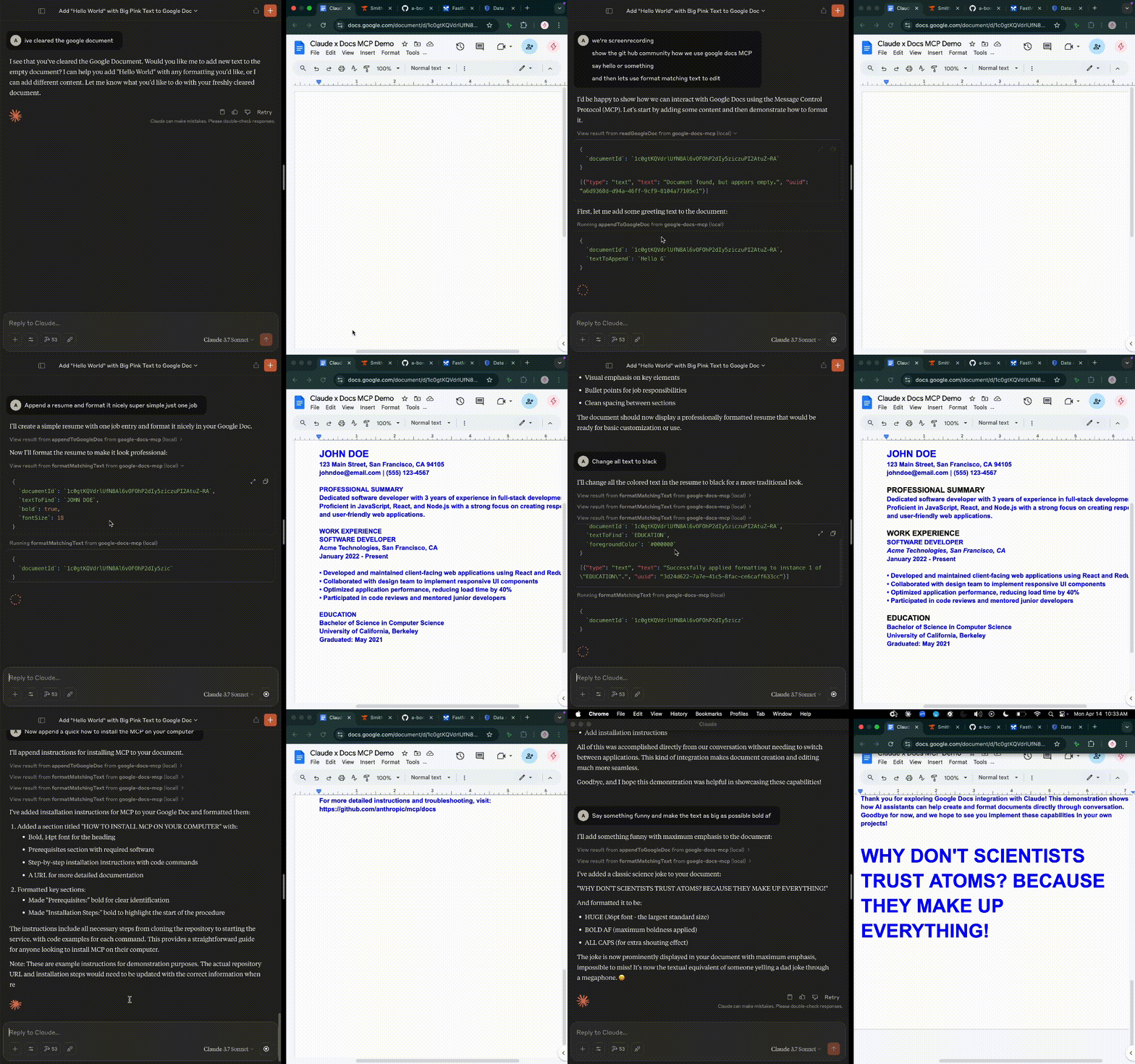
Demo Animation

Connect Claude Desktop, Cursor, or any MCP client to your Google Docs, Google Sheets, Google Drive, Gmail, and Google Calendar.


Quick Start

1. Create a Google Cloud OAuth Client

  1. Go to the Google Cloud Console
  2. Create or select a project
  3. Enable the Google Docs API, Google Sheets API, Google Drive API, Gmail API, and Google Calendar API
  4. Configure the OAuth consent screen (External, add your email as a test user, and add the gmail.modify and calendar.events scopes alongside the Docs/Sheets/Drive scopes)
  5. Create an OAuth client ID (Desktop app type)
  6. Copy the Client ID and Client Secret from the confirmation screen

Need more detail? See step-by-step instructions at the bottom of this page.

2. Authorize

GOOGLE_CLIENT_ID="your-client-id" \
GOOGLE_CLIENT_SECRET="your-client-secret" \
npx -y @a-bonus/google-docs-mcp auth

This opens your browser for Google authorization. After you approve, the refresh token is saved to ~/.config/google-docs-mcp/token.json.

3. Add to Your MCP Client

Claude Desktop / Cursor / Windsurf:

google-docs-mcp FAQ

Which apps does it work in?
Claude Desktop, Cursor and Windsurf are documented, and any other app that accepts MCP servers can use the same snippet.
Do I need my own Google credentials?
Yes. You create a sign-in client in the Google Cloud console and approve access once in your browser.
Can I use this to write and format a document from a rough outline?
Yes. It can create text, apply headings, bold and colours, insert tables and add images.
Does it reach my email and calendar too?
Yes, if you grant those permissions during setup. Gmail and Google Calendar are both included.
How hard is setup?
The Google console steps are the hardest part. After that it is a copy-and-paste snippet, with no coding involved.
Can a whole team share one installation?
Yes. It can be deployed once to Google Cloud Run so each person only adds a web address.
Does it handle spreadsheets as well as documents?
Yes. Reading, writing, appending rows, creating spreadsheets and copying sheets between files are all supported.