


A Model Context Protocol (MCP) server implementation for JetBrains YouTrack, allowing AI assistants to interact with YouTrack issue tracking system.
Model Context Protocol (MCP) is an open standard that enables AI models to interact with external tools and services through a unified interface. This project provides an MCP server that exposes YouTrack functionality to AI assistants that support the MCP standard, such as Claude in VS Code, Claude Desktop, GitHub Copilot, and Cursor IDE.
-
Issue Management
- Get issue details
- Search for issues using YouTrack query language
- Create new issues
- Add comments to issues
-
Project Management
- Get project list and details
- Create and update projects
- Access project issues
- Manage custom fields
-
User Management
- Get current user information
- Search for users
- Access user details and groups
-
Search Functionality
- Advanced search with custom fields
- Structured filtering
- Sorting options
# Run with Docker (for YouTrack Cloud instances)
docker run -i --rm \
     -e YOUTRACK_URL=https://your-instance.youtrack.cloud \
     -e YOUTRACK_API_TOKEN=perm:your-api-token \
     -e YOUTRACK_CLOUD=true \
     tonyzorin/youtrack-mcp:latest

# Or for self-hosted YouTrack instances
docker run -i --rm \
     -e YOUTRACK_URL=https://your-instance.youtrack.cloud \
     -e YOUTRACK_API_TOKEN=your-api-token \
     -e YOUTRACK_CLOUD=false \
     tonyzorin/youtrack-mcp:latest
For Cursor IDE, add to .cursor/mcp.json:
{
    "mcpServers": {
        "YouTrack": {
            "type": "stdio",
            "command": "docker",
            "args": ["run", "-i", "--rm",
            "-e", "YOUTRACK_URL=https://your-instance.youtrack.cloud",
            "-e", "YOUTRACK_API_TOKEN=perm:your-api-token",
            "-e", "YOUTRACK_CLOUD=true",
            "tonyzorin/youtrack-mcp:latest"
            ]
        }
    }
}
For Claude Desktop, set as MCP server:
docker run -i --rm -e YOUTRACK_API_TOKEN=perm:your-api-token -e YOUTRACK_CLOUD=true tonyzorin/youtrack-mcp:latest
-
Pull the Docker image:
docker pull tonyzorin/youtrack-mcp:latest
-
Run the container with your YouTrack credentials:
docker run -i --rm \
  -e YOUTRACK_URL=https://your-instance.youtrack.cloud \
  -e YOUTRACK_API_TOKEN=your-api-token \
  tonyzorin/youtrack-mcp:latest
If you prefer to build the image yourself:
-
Clone the repository:
git clone https://github.com/tonyzorin/youtrack-mcp.git cd youtrack-mcp -
Build the Docker image:
docker build -t youtrack-mcp . -
Run your locally built container:
docker run -i --rm \
  -e YOUTRACK_URL=https://your-instance.youtrack.cloud \
  -e YOUTRACK_API_TOKEN=your-api-token \
  youtrack-mcp
To build and push multi-architecture images (for both ARM64 and AMD64 platforms):
-
Make sure you have Docker BuildX set up:
docker buildx create --use
-
Build and push for multiple platforms:
docker buildx build --platform linux/amd64,linux/arm64 \
  -t tonyzorin/youtrack-mcp:0.3.7 \
  -t tonyzorin/youtrack-mcp:latest \
  --push .
This builds the image for both ARM64 (Apple Silicon) and AMD64 (Intel/AMD) architectures and pushes it with both version-specific and latest tags.
⚠️ API Token Security
- Treat your mcp.json file as .env
- Rotate your YouTrack API tokens periodically
- Use tokens with the minimum required permissions for your use case
To use your YouTrack MCP server with Cursor IDE:
-
Create a
.cursor/mcp.jsonfile in your project with the following content:{ "mcpServers": { "YouTrack": { "type": "stdio", "command": "docker", "args": ["run", "-i", "--rm", "-e", "YOUTRACK_API_TOKEN=perm:your-api-token", "-e", "YOUTRACK_URL=https://your-instance.youtrack.cloud", "-e", "YOUTRACK_CLOUD=true", "tonyzorin/youtrack-mcp:latest" ] } } } -
Replace
yourinstance.youtrack.cloudwith your actual YouTrack instance URL andperm:your-tokenwith your actual API token. -
Restart Cursor or reload the project for the changes to take effect.
To use with Claude Desktop:
- Open Claude Desktop preferences
- Navigate to the MCP section
- Click Edit.
- Open claude_desktop_config.json
- Add a new MCP server with:
{
    "mcpServers": {
        "YouTrack": {
            "type": "stdio",
            "command": "docker",
            "args": ["run", "-i", "--rm",
            "-e", "YOUTRACK_API_TOKEN=perm:your-api-token",
            "-e", "YOUTRACK_URL=https://your-instance.youtrack.cloud",
            "-e", "YOUTRACK_CLOUD=true",
            "tonyzorin/youtrack-mcp:latest"
            ]
        }
    }
}
Replace the URL and token with your actual values.
To use the YouTrack MCP server with VS Code:
-
Create a
.vscode/mcp.jsonfile with the following content:{ "servers": { "YouTrack": { "type": "stdio", "command": "docker", "args": ["run", "-i", "--rm", "-e", "YOUTRACK_API_TOKEN=perm:your-api-token", "-e", "YOUTRACK_URL=https://your-instance.youtrack.cloud", "-e", "YOUTRACK_CLOUD=true", "tonyzorin/youtrack-mcp:latest" ] } } } -
Replace
yourinstance.youtrack.cloudwith your actual YouTrack instance URL andperm:your-tokenwith your actual API token.
The YouTrack MCP server provides the following tools:
get_issue- Get details of a specific issue by IDsearch_issues- Search for issues using YouTrack query languagecreate_issue- Create a new issue in a specific projectadd_comment- Add a comment to an existing issue
get_projects- Get a list of all projectsget_project- Get details of a specific projectget_project_issues- Get issues for a specific projectcreate_project- Create a new project
get_current_user- Get information about the currently authenticated userget_user- Get information about a specific usersearch_users- Search for usersget_user_by_login- Find a user by login nameget_user_groups- Get groups for a user
advanced_search- Advanced search with sorting optionsfilter_issues- Search with structured filteringsearch_with_custom_fields- Search using custom field values
When using the YouTrack MCP tools, it's important to use the correct parameter format to ensure your requests are processed correctly. Here's how to use the most common tools:
To get information about a specific issue, you must provide the issue_id parameter:
# Correct format
get_issue(issue_id="DEMO-123")
The issue ID can be either the readable ID (e.g., "DEMO-123") or the internal ID (e.g., "3-14").
To add a comment to an issue, you must provide both the issue_id and text parameters:
# Correct format
add_comment(issue_id="DEMO-123", text="This is a test comment")To create a new issue, you must provide at least the project and summary parameters:
# Correct format
create_issue(project="DEMO", summary="Bug: Login page not working")

# With optional description
create_issue(
    project="DEMO",
    summary="Bug: Login page not working",
    description="Users cannot log in after the latest update"
)
The project parameter can be either the project's short name (e.g., "DEMO") or its internal ID.
When using MCP tools through AI assistants, parameters may sometimes be passed in different formats. The YouTrack MCP server is designed to handle various parameter formats, but using the explicit format above is recommended for best results.
If you encounter errors with parameter format, try using the explicit key=value format shown in the examples above.
Here are some examples of using the YouTrack MCP server with AI assistants:
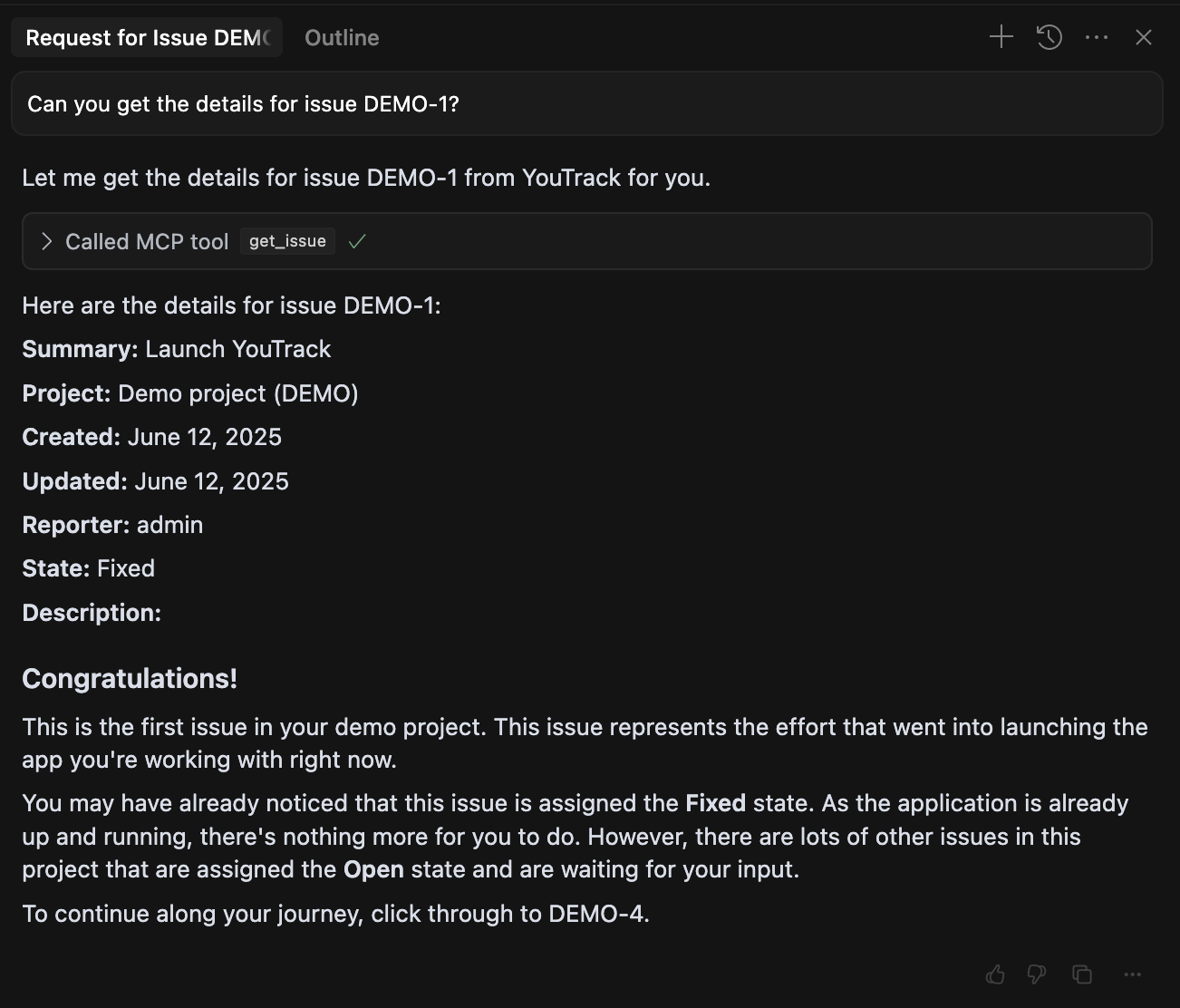
Can you get the details for issue DEMO-1?
Find all open issues assigned to me that are high priority
Create a new bug report in the PROJECT with the summary "Login page is not working" and description "Users are unable to log in after the recent update."
Add a comment to issue PROJECT-456 saying "I've fixed this issue in the latest commit. Please review."
The server can be configured via environment variables:
| Variable | Description | Default |
|---|---|---|
YOUTRACK_URL |
YouTrack instance URL | (required) |
YOUTRACK_API_TOKEN |
YouTrack permanent API token | (required) |
YOUTRACK_VERIFY_SSL |
Verify SSL certificates | true |
MCP_SERVER_NAME |
Name of the MCP server | youtrack-mcp |
MCP_SERVER_DESCRIPTION |
Description of the MCP server | YouTrack MCP Server |
MCP_DEBUG |
Enable debug logging | false |
For self-hosted instances with self-signed SSL certificates, you can disable SSL verification:
docker run -i --rm \
  -e YOUTRACK_URL=https://youtrack.internal.company.com \
  -e YOUTRACK_API_TOKEN=perm:your-permanent-token \
  -e YOUTRACK_VERIFY_SSL=false \
  tonyzorin/youtrack-mcp:latest
This option is only recommended for development or in controlled environments where you cannot add the certificate to the trust store.
You can enable debug logging for troubleshooting:
docker run -i --rm \
  -e YOUTRACK_URL=https://your-instance.youtrack.cloud \
  -e YOUTRACK_API_TOKEN=perm:your-permanent-token \
  -e MCP_DEBUG=true \
  tonyzorin/youtrack-mcp:latest